Aggregate FA Term Information
The Aggregate FA Term Information tile is displayed for term-based programs (Academic Calendars 1, 2, 3, or 4) if Enable FA Credits for Enrollment Status and Enrollment Intensity is set to Yes under Settings > System > Advanced Features.
You can use the Aggregate FA Term Information page to view the breakdown per term of the Financial Aid (FA) Enrollment Status, FA Enrollment Intensity, and FA Credits (from the FAStudentCredits table). The aggregate data is gathered from courses registered in all of the student's program versions. The page displays the student's courses registered in the term or a child of the term. Child records are grouped by program version. The terms are ordered from the most recent date to the earliest date.
When you modify the Include in FA Calculation field, the page will reflect the FA Credits, FA Enrollment Status, and FA Enrollment Intensity as per the modification.
You can select the Load Historical Terms option to load the historical term information for that student and refresh the view. When historical terms are loaded, FA Credits for those terms are summed, updating the FA Credits (both individual and aggregate).
Enrollment Status History Tracking
Regulatory US 26.3.0 enhances FA Aggregate Term Information by capturing, storing, and displaying FA Enrollment Status changes over time. This enhancement improves transparency, traceability, and reporting for FA enrollment evaluations used in Title IV processing.
The FA Enrollment Status Audit view displays historical records of FA Enrollment Status changes for the student at the individual program level and the aggregate level. The aggregate calculates FA Enrollment Status changes in the same term but from different Program Version courses.
The status changes are driven by registrations/un-registrations, transfers, and the "Include in FA Calculation" toggle (Yes/No). Status changes are tracked for single enrollments, multiple enrollments, and connected enrollments. The status audit information is available for both newly generated changes and historically loaded data that were registered after upgrading to Regulatory US 26.3.0.
For more details about further enhancements to the FA Aggregate Term Information and FA Credits feature refer to:
-
Enhancement to Identify Title IV-eligible Programs in Multiple Enrollments
Best Practice:
Do not register Title IV courses for Non-Degree Seeking (NDS) students, i.e., in programs that are not Title IV-eligible.
-
The system identifies only the latest enrolled Title IV-eligible program version's configuration to determine Financial Aid (FA) Enrollment Status and FA Enrollment Intensity.
-
Even if Non-Degree Seeking (NDS) programs are enrolled, the system ignores these programs and instead references the program where Title IV Eligibility is set to YES.
-
Do not mix and match the courses to be retaken in NDS and Degree Seeking programs.
-
Maintain the Min Credits definition for the enrollment status the same across both enrollments when two enrollments are connected.
-
-
Enhancement to the FA Credit Calculation for Dropped and Withdrawn Courses
Best Practice:
Not all courses require attendance to be posted, and not all schools will drop the course when a student did not attend; instead, they will unregister.
To avoid this confusion, follow this best practice:
-
When a student did not attend a course, unregister the course.
-
If the course is not unregistered but dropped, the system will determine if the course is dropped before or after the Add/Drop period.
-
If the course is dropped after the Add/Drop period, FA credits will be included in the calculation.
-
Program Version Course List Changes and Financial Aid Processing
When a student registers for a course associated with a Category, the course is included in Financial Aid (FA) calculations and appears correctly on the Aggregate FA Term Information page.
If an Academic Administrator subsequently modifies the course classification in the Program Version > Course List (for example, changing the course from a Category to a different Category, Area of Study (AOS), or Elective), the Update Student Course Lists and Requirement Rules process must be run to synchronize the change with the student's academic record.
If additional registration activity occurs before this process is executed, the Aggregate FA Term Information page may display unexpected results, including:
- A blank value in the Source column
- Include in FA Calculation set to No
- Incorrect FA credit calculations
- Incorrect FA Enrollment Intensity calculations
These results occur because the student's course record has not yet been updated to reflect the latest Program Version configuration.
Best Practice:
To ensure accurate FA calculations and reporting:
-
Whenever changes are made to course a Category in a Program Version > Course List, the Academic department should run the Update Student Course Lists and Requirement Rules process before any additional registration activity occurs for the affected student and term.
-
This process ensures that Category changes are reflected correctly in Student Profile > Academic Records > Student Courses and that downstream FA calculations remain accurate.
-
If discrepancies are identified in the FA Credits, Source, or Include in FA Calculation fields on the Aggregate FA Term Information page, select Load Historical Terms to refresh and recalculate the data based on the updated course information.
-
FA administrators should coordinate with the Academic department to determine whether any course Category changes have been made to the associated Program Version before investigating FA calculation discrepancies.
Prerequisites
Authorizations:
-
Common - Student - View
-
Financial Aid – Student Credits – View, Edit
You should be familiar with the Background for FA Credits.
Access
Students > select the student > Financial Aid > Aggregate FA Term Information
View or Edit Aggregate FA Term Information
-
Review the values on the page. Each record represents a program version the student is enrolled in.
To access the extended FA Credits, Student 25.2.0 and Regulatory US 25.7.0 is required.
Example
A student is enrolled in 2 program versions. The Fall 2024 term is used by all enrollments.
- 3 credits are registered in the fall term under enrollment A
- 3 credits are registered in the fall term under enrollment B
The FaTermRegCredits table will store 6 credits. This would produce an FA Enrollment Status of Half Time for the Fall 2024 term at the program version level.
Note the value of the Cumulative FA Credits for the student above the grid.
If the student is registered in remedial courses, the page displays the Remedial FA Credits below the Cumulative FA Credits.
About Remedial FA Credits
When a student enrolls in remedial courses, schools may fund these courses up to a limit of 30 Remedial Credits. After reaching this cap, according to FSA regulations, the student is no longer eligible for Title IV funding. Credits earned or attempted in remedial courses beyond the cap are not counted as FA Credits.
Anthology Student determines Title IV funding using FA Enrollment Status and FA Enrollment Intensity. The system validates that when a student has more than 30 credit hours from remedial courses, those credits are excluded from consideration in the Title IV Funding evaluation, unless an FA Officer overrides this setting using the Include in FA Calculation
option on the Aggregate FA Term Information page.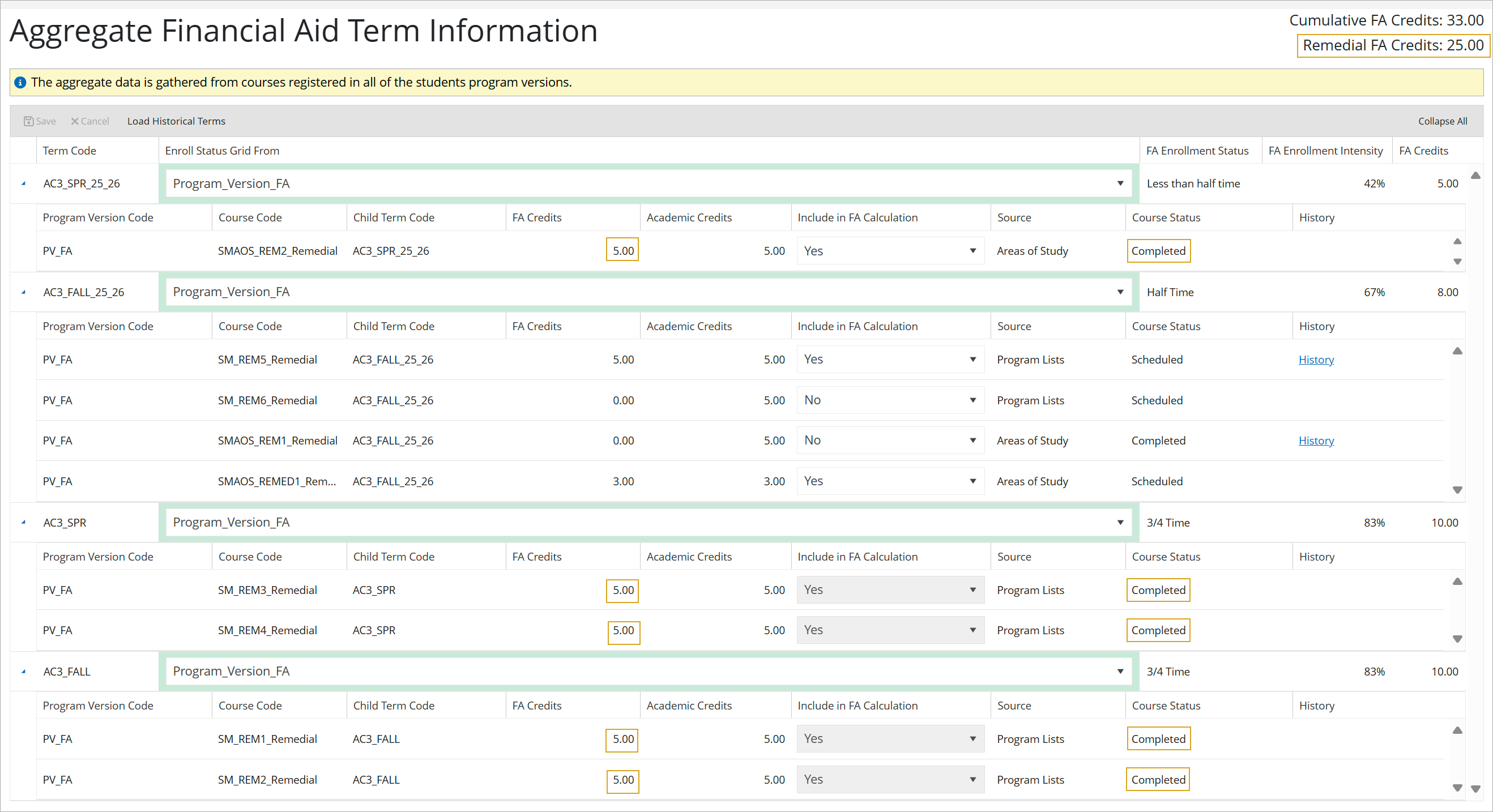
To configure remedial credits for a course, go to Configuration > Academic Records > Courses and select Remedial Course
. For more details, refer to Add or Edit Courses.About Retakes/Repeats
The system identifies the number of retakes and determines whether the course is valid for inclusion in FA calculations:
-
The system calculates the number of retakes.
-
The Course Code column shows the suffix "_Retake_x" (where x = 1, 2, 3,... n).
-
After calculating the retakes, the system checks the pass or fail status of the course in the previous term.
-
Based on the status, the system determines the eligibility for Title IV funding.
-
The "Include in FA Credit Calculation" column indicates Yes or No for the courses that are retaken as per the FSA Rules.
-
An Initial passed course can be retaken twice. If a passed course is retaken at the first or second attempt, the "Include in FA Credit Calculation" field is set to Yes.
-
If the same course is retaken again, the field is updated to No, and the "FA Credits" field is not updated with the course credits.
-
If the retake course is a mandatory course to complete a program, which can be considered as repeated by the institution, then it is up to the staff member to flip the column from No to Yes and save the calculation.
-
When a course is retaken (re-registered), the system will ask, "Is this a retake?". The staff member can select the Yes and No options.
-
When a course is not flagged as a Retake (refer to Add or Edit Courses), the system will ask "Is this a retake?" during registration. If the staff member did not select No, the course will be included in the calculation and will appear on the Aggregate FA Term Information page as Yes for "Include in FA Calculation".
-
If the option is set as Yes, the system will treat this course as a Retake.
-
-
Select the expand icon (
 ) to view the child records associated with the program versions.
FA Credits
This field shows the actual FA credits
when the course is eligible for the FA Calculation.
Otherwise, the value is zero (0). -
If you have Edit permission, you can select different Program Versions in the drop-down lists of the Enroll Status Grid From column.
Read Note.Keep in mind that when a course is:
-
Included in the course list, the FA Credits, and EI will be calculated (credits will be shown in the FAStudentCredits table and EI will be updated)
-
Excluded from the course list, the FA Credits, and EI will not be calculated (credits will not be shown in the FAStudentCredits table and EI will not be updated)
-
-
Select the Load Historical Terms in the grid toolbar to load the historical term information for that student and refresh the view.
The historical terms option:
-
Displays all the term information from the start of the academic year in descending order (latest first)
-
Updates the suffixes on the courses for retakes and remedial courses while loading
Example:
-
Course COMM101 is taken in FALL2023.
-
COMM101 is registered for SPR2024 and is displayed on the Aggregate FA Term Information page.
When you select Load Historical Terms:
-
COMM101 for SPR2024 is displayed as COMM101_Retake.
-
FALL2023 displays COMM101.
-
The historical terms view does not include perpetual terms since they do not apply to standard term programs.
-
-
Select FA Enrollment Status Audit to view the student's FA Enrollment Status changes at the individual program level and the aggregate level. The aggregate values are calculated for FA Enrollment Status changes in the same term but from different Program Version courses for a single enrollment, multiple enrollments, and connected enrollments.
The grid is read-only and intended for monitoring and review purposes. It shows the following values:
- New and previous FA Enrollment Status
- New and previous aggregate FA Enrollment Status
- Effective date of the change
Registrations/un-registrations, transfers, and the "Include in FA Calculation" toggle (Yes/No) trigger changes in the status values.
Note: When there are connected enrollments, and a course is registered in one enrollment, the FA Enrollment Credits will be applied to that enrollment. If the other enrollment has no registered courses, there will be no update to the FA enrollment credits for that enrollment.
-
Save your changes.
If you modified the Include in FA Calculation
value for one or more records, you must specify a Comment before the page is saved. The comments will be saved and can be viewed by selecting the History link.The values in the FA Enrollment Status, FA Enrollment Intensity, and FA Credits fields will be updated based on the program versions you selected and saved. All changes will be tracked in the Financial Aid Audit.
The FA Credits information will be updated in the following location:
- Academics - Enrollment - Enrollment Based Term Summary accordion
| This feature applies to U.S. compliance only. |
