Add or Remove the Picture of the Staff Member
For staff members, you can:
- Upload and add a picture
- Remove a picture
You can upload and add or remove a picture from more than one location in Anthology Student.
Prerequisites
You should be familiar with: Working with Instructors and Admissions Representatives.
| Type of Staff | Access | Authorizations: |
|---|---|---|
| Admission representatives | Processes > Admissions > Admissions Representatives Maintenance |
Common - Processes - View Admissions - Processes - Admissions Representative - Manage |
| All staff | Settings > System > Staff | System - Settings - Staff - Manage |
| Instructors | Processes > Academic Records > Instructor Maintenance |
Common - Processes - View Academics - Processes - Instructor Maintenance - Manage |
To edit the values for System Administrator (code ADMINISTRATOR), you must be logged in as the System Administrator.
To upload and add a picture, you must have added the required values and saved the record for the staff member. The file for the picture must also be less than 2 MB and in one of the following formats.
- BMP
- GIF
- JPG
- JPEG
Add a Picture
-
If not already selected, select the staff member.
-
In the profile for the staff member, select the default picture.
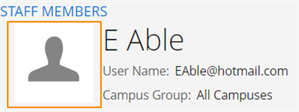
-
On the Upload Photo dialog, select Upload Photo.
-
On the Open dialog, locate and select the file for the picture.
-
Select Open.
-
Review the picture.
-
Save your changes. The dialog closes, and the picture is displayed in the profile.
Remove a Picture
-
If not already selected, select the staff member.
-
In the profile for the staff member, select the on the picture.
-
On the Upload Photo dialog, select Revert to Default. Anthology Student replaces the picture with the default image.
