Extended Properties
Use the Extended Properties page to add, edit, delete, or deactivate custom properties that your institution chooses to include in the data entities.
The SyExtendedPropertyValue table has been restructured to eliminate its centralized design to dedicated tables created for each entity utilizing extended properties. This architectural enhancement significantly boosts the platform’s performance and scalability in managing extended property values. It reflects Anthology's continued commitment to optimizing system efficiency and long-term maintainability. See Architectural Change to Extended Properties in Anthology Student 25.3
You must open an individual record to add or edit an extended property for each entity in following table.
| Module or Category | Entity Type | Access |
|---|---|---|
| Academic Records | Area of Study | Configuration > Academic Records > Area of Study > select or add an area of study name |
| Buildings | Configuration > Academic Records > Buildings | |
| Course Book | Configuration > Academic Records > Courses | |
| Course Book List | Configuration > Academic Records > Courses | |
| Location | Configuration > Academic Records > Locations | |
| Program | Configuration > Academic Records > Programs | |
| Program Version | Configuration > Academic Records > Programs > select or add a program version | |
| Student Academic Status History | Students > select the student > Academic Records > Student Status History | |
| Student Course | Students > select the student > Academic Records > Student Courses | |
| Student Enrollment Period | Students > select the student > Academic Records > Enrollments | |
| Admissions | College and College Courses | Configuration > Admissions > Colleges |
| High School | Configuration > Admissions > High Schools | |
| Applicant | Students > select the student > Admissions > Student Applications | |
| Student Previous Education | Students > select the student > Admissions > Previous Education | |
| Career Services | Skill | Configuration > Career Services > Skills |
| Certification | Configuration > Career Services > Certifications | |
| Contact Manager | Student Agency Branch | Students > select the student > Contact Manager > Agency Affiliations |
| Student Groups Membership | Students > select the student > Contact Manager > Group Memberships | |
| Document Type | Configuration > Contact Manager > Documents | |
| Document | Students > select the student > Contact Manager > Documents | |
| Financial Aid | Student Award | Students > select the student > Financial Aid > Awarding > Awards |
| Fund Source | Configuration > Financial Aid > Fund Sources | |
| Student Accounts | Student Ledger Card Transaction | Students > select the student > Student Accounts > Ledger Card |
| Student Subsidiary Account Transaction | Students > select the student > Student Accounts > Subsidiary | |
| Student Bank Account | Students > select the student > Student Accounts > Payment Information | |
| Student Credit Card | Students > select the student > Student Accounts > Payment Information | |
| Transaction Code | Configuration > Student Accounts > Transaction Codes | |
| System | Campus | Settings > System > Campuses |
| Staff | Settings > System > Staff | |
| Scheduling | Class Section | Class Scheduling |
| Student Services | Student Indicators | Students > select the student > Student Services > Indicators |
For example, you can define an extended property for:
-
Area of Study to gather and store an additional value in the database that is not already in Anthology Student
-
Programs to gather and store an additional value in the database that is not already in Anthology Student
The extended property you specify here for entities like Area of Study and Programs can be selected respectively when you configure:
-
Area of Study (Configuration > Academic Records > Areas of Study)
-
Programs (Configuration > Academic Records > Programs)
You can also specify that the extended properties require authorization.
There are two options for creating custom fields in Anthology Student. The method you select depends on the type of custom field and the level of security you want to define for the custom field.
| Option in Settings > System | Type of Custom Field | Where Used | How Field is Secured |
|---|---|---|---|
| School Defined Fields | Fields for student information | School Fields tiles from the Student Profile |
View and edit authorizations are configured for modules when the field is added. For example, if only View is specified for Academic Records, the field can only be viewed on the School Fields tile under Academic Records. For a staff member to view and edit, the staff member must also have view or edit authorization for the School Fields page. |
| Extended Properties | Fields for properties for specific entities (such as fields for student enrollments, staff, program versions, and document types) | Varies by entity type. For example, a property for student enrollment is displayed when you add or edit a student enrollment from the Enrollments tile. |
If the property is configured to require authorization, the view and edit authorizations are specified for the groups of staff members defined in the Security Console. For a staff member to view and edit, the staff member must:
|
Prerequisites
Authorizations:
-
System - Settings - Extended Properties - Manage
Access
Settings > System > Extended Properties
Display Records That Use Extended Properties
-
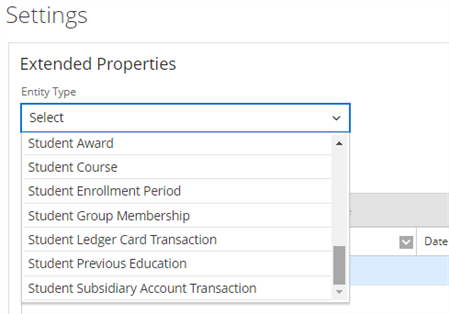
Select an Entity Type
 .
. 
-
Select a record.
-
Select Field Usage on the toolbar.
If there are values specified for the field, Anthology Student displays a dialog with the details where the value is specified.
-
Review the following values.
-
Select OK.
Add or Edit Items
-
Select an Entity Type
. -
To:
-
Add an item, select New
-
Duplicate an item, select it and then select Duplicate
-
Edit an item, select its Name
-
-
Review, specify, or change the values.
-
Take the appropriate action. For Type Validation:
Value You Selected Action to Take Multi Select List or Value List You must specify the values in the order you want them to be displayed for the extended property.
-
If you want to:
- Add a new value, select Add
- Edit a value, select the record
-
Specify the value in the Value field.
To remove a value, select the record and select Remove.
None No action required.
Range Specify the range in the From and To fields. -
-
If you selected Yes in the Requires Authorization field, specify or change the values in the grid under Property Security. Anthology Student displays a list of the groups your institution configured in the Anthology Student Security Console.
Select the:
-
View check box to make the field read-only for the group
-
Edit check box to make the field editable for the group
-
-
To check how your additions and changes will look on the extended properties section, select Save and then select Preview.
-
Save your changes.
-
If you selected Yes in the Requires Authorization field and you want to make the extended properties available to staff members, you must:
-
First clear the server cache. For information about clearing the cache, refer to Clear the Server Cache.
-
Then, request that the staff members log off and log in again to access the extended properties.
-
Implications of Editing Specific Extended Property on the Page
There are implications in editing some of the values on the page. For example, changing the value for Type from Date to Numeric. When you select a field to edit it, Anthology Student displays a message showing the number of records where a value is specified. Anthology Student tries to convert the data to the new type. If the data cannot be converted, Anthology Student displays a message, and you can choose to continue or cancel.
If needed, you can cancel and use Field Usage on the toolbar to display the records for the entities where an extended property is specified along with the value.
Delete or Deactivate Extended Properties
You can delete or deactivate the extended properties that your institution configured.
-
Deleting a field permanently removes it along with any of the values specified for a entity. No record of deleted fields or values is maintained in Anthology Student.
- Deactivating a field item keeps a record of it in Anthology Student (preferred). It can no longer be specified for a entity, but any previously specified values remain in Anthology Student.
Delete Items
-
To display a list of entities where the extended property is specified along with the value, highlight the field and select Field Usage.
-
To delete the field, select Delete on the toolbar.
If the field contains values for entities, Anthology Student displays a message indicating how many.
-
To continue, select Continue.
Anthology Student removes the item from the list on the page and the list is redisplayed. Any values specified for the entities are also deleted.
Deactivate Items
-
To display a list of entities where the value is specified along with the value specified for the entities, highlight the item and select Field Usage.
-
Select a record. Anthology Student displays the details of the selected record.
-
In the Active
field, select No option from the drop-down list. The item:
-
Remains displayed with No in the Active column
-
Is also no longer displayed on the Extended Properties section for the appropriate entities
-
