Transfer Student Monitoring Review
Use the Transfer Student Monitoring Review page to view the status of all TSM data for students. The review process gathers student records based on the filter settings in the Selection Criteria section and displays the results in a grid at the bottom of the page. You can filter and review the following record types:
-
Error Acknowledgment Records: These records are returned from NSLDS in response to a Batch Inform file. NSLDS uses these records to inform institutions that there is a problem with the student data sent and that the student is NOT in monitoring at NSLDS. The institution needs to fix the data and resend the student in a new Batch Inform file. The review page for this record type supports the following actions:
-
View error codes from Error Acknowledgement files
-
Mark error records as reviewed
-
Access a link to the Awards page to update awarding data
-
Save reviewed records which allows students to be re-exported
-
-
Alert Records: These records are sent from NSLDS when a change has occurred in their financial aid history. When an institution receives this type of record for the student, that student is placed in a disbursement hold, if one is configured for the campus. The review process allows you to mark the alerts as reviewed and when saved, the system will remove the student from the configured disbursement hold group. The review page for this record type supports the following actions:
-
View data from the alerts that changed at NSLDS
-
Capture notes for alerts
-
Mark alerts as reviewed
-
Access a link to the Awards page to update awarding data
-
Save reviewed records which allows students to be removed from the disbursement hold
-
-
Monitoring Records: These system records are used to manage the current TSM status of students. The review page for this record type supports the following actions:
-
View the status of a student's TSM record (Monitoring, Alerted, Expired, etc.)
-
Update statuses
-
Mark students as done and remove them from Transfer Student Monitoring
-
-
Unmatched Alert Records: If you imported an alert file with a record that does not have a corresponding record in the TSM main table but a student record exists for a matching SSN, you can use this record type to manually match the unmatched alert record to a student. The system will then create the TSM main record which places the student in monitoring within Anthology Student based on the Batch Inform Date you specified. The review page for this record type supports the following actions:
-
View the identifying data of students that are not matched in the TSM main table
-
Access a link to the Awards page to update awarding data
-
Specify the Batch Inform Date which will be used to determine the monitor duration when the system creates the TSM main record. You will need to get the Batch Inform Date from the data at NSLDS so that the monitor duration will match between the two systems.
By default, the Batch Inform Date is populated with today’s date in the FATSMMain table; however, the auto-populated date is not used in determining how long to monitor a student.
-
Save reviewed records
After manually matching the record, the alert can be viewed from the student's Award page.
-
-
Unmatched FAH Records: If you imported a financial aid history file with a record that does not have a corresponding record in the TSM main table but a student record exists for a matching SSN, you can manually match the unmatched financial aid history record to a student. The review page for this record type supports the following actions:
-
View the identifying data of students that are not matched in the TSM main table
-
Access a link to the Awards page to update awarding data
-
Save reviewed records
After manually matching the record, the financial aid history can be viewed from the student's NSLDS page.
-
Financial Aid Processes File Management
Use Processes > System Administration > Financial Aid Processes File Management to upload and download files in Azure File Storage. This functionality allows you to place files where financial aid processes, such as Application Data Import/Export, Clearinghouse, and NSLDS Reports, expect them. Refer to Financial Aid Processes File Management.
Prerequisites
Authorizations:
-
Common - Processes - View
-
Financial Aid - Processes - Transfer Student Monitoring - Review
You should also be familiar with the Background for Transfer Student Monitoring.
Access
Processes > Financial Aid > Transfer Student Monitoring Review
Review Transfer Student Monitoring Records
 Selection Criteria
-
In the Record Type field, select one of the following options:
-
Alert (continue with Step 2)
-
Error Acknowledgment (continue with Step 3)
-
Monitoring Record (continue with Step 4)
-
Unmatched Alert (continue with Step 5)
-
Unmatched FAH (continue with Step 5)
-
-
If you selected Alert in Step 1, specify the following values:
-
OPEID
The drop-down list contains all configured OPEIDs in the Anthology Student database to which you have access.
Note about School Code, Branch Number, and OPEID
Anthology Student supports institutions that use a numeric School Code and Branch Number, as well as institutions that use an OPEID.
If your institution uses a School Code and Branch Number, Anthology Student processes will append the 2-digit Branch Number to the 6-digit School Code (also known as Pell ID) and create the 8-digit OPEID.
The OPEID must be used instead of the School Code and Branch Number in the following processes:
- Clearinghouse Export
- COD Export
- Enrollment Reporting (SSCR Processing)
- FISAP
- Transfer Student Monitoring
When Financial Aid Automation is used and the School Code for your institution contains the letter G, B, or E, replace the letter with a 0 (zero).
-
(Optional) Date Received From and To
-
(Optional) Include Previously Reviewed — When you select this option, the system only gathers the records marked as reviewed from a previous session.
-
-
If you selected Error Acknowledgment in Step 1, specify the following values:
-
OPEID
The drop-down list contains all configured OPEIDs in the Anthology Student database to which you have access.
-
(Optional) Date Received From and To
-
-
If you selected Monitoring Record in Step 1, choose a Review Type. The options are:
-
Date Range
If you select Date Range, specify values for the following fields:
-
Monitoring Status (multiple selections) - The options are:
- Alerted
- Deleted
- Errored
- FAH Only
- Monitoring
- Ready To Send
- Expired
-
Campuses (multiple selections)
-
Monitor Start Date From and To
-
-
Single Student
If you select Single Student, use the Student Search field to find the student record.
-
-
If you selected Unmatched Alert or Unmatched FAH in Step 1, specify the following values:
-
OPEID
The drop-down list contains all configured OPEIDs in the Anthology Student database to which you have access.
-
(Optional) Date Received From and To
-
-
Select Next. The Selection Criteria section will be collapsed and the Results section will be expanded.
To reset the selection criteria, select Clear Filters and return to Step 1.
Results
-
Review the record values.
-
For record type Alert, the grid displays the following columns:
-
For record type Error/Acknowledgement, the grid displays the following columns:
-
For record type Monitoring Record, the grid displays the following columns:
-
For record type Unmatched Alert, the grid displays the following columns:
-
For record type Unmatched FAH, the grid displays the following columns:
-
-
To view the Student Profile for a record, select the link on the student's name. The Student Profile page for the selected record is displayed in a new browser tab if you have permission to view student data.
The Profile of students in Transfer Student Monitoring or Alerted status displays the visual indicator
 at the top right of the page. When you hover over the icon, the tooltip displays the following information:
Transfer Student Monitoring from <Expected Start Date> to <Expected Start Date + Monitor Duration Days >
When the monitor duration period is expired or the student is removed from monitoring, the icon is no longer displayed.
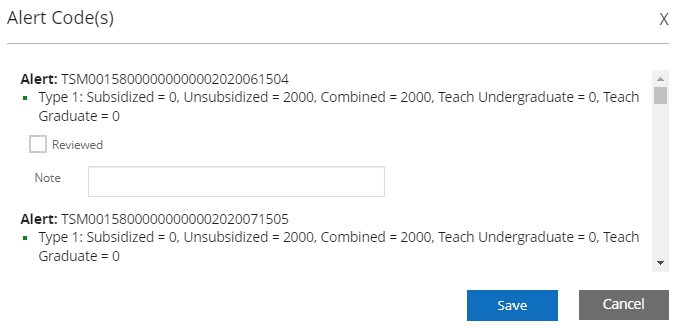
When an NSLDS alert file is imported, Anthology Student displays an alert indicator for each student on their Awards page. You can review the alerts, capture notes, and mark them as reviewed for each student. The system removes the student from the TSM disbursement hold and changes the student's TSM status from alerted back to monitoring if you save with all alerts marked as reviewed.

The alerts message bar displays TSM Alerts when there are un-reviewed alerts from NSLDS for the student.
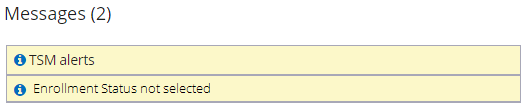
The TSM alert pop-up displays the alert file and the records with changes at NSLDS that triggered the alert. You can capture a note and mark the alert as reviewed. When all alerts for the student are marked as reviewed, the system will remove the student from the configured TSM disbursement hold.
-
Check each record in the Results grid and set the following values as applicable:
-
Select the Reviewed check box for Alert or Error Acknowledgement records as appropriate after checking the student data.
-
Add or edit the Notes for Alert records.
-
Select the Delete From Monitoring check box to remove a student from the Transfer Student Monitoring list. Use this option only if the student will not be attending your institution or the student was added to your institution's list in error. Do not delete a student simply to stop monitoring him or her.
Once the Delete has been confirmed, the student's information will be removed from the Transfer Student Monitoring and, if applicable, Alert lists. It does not delete the student from the NSLDS database.
-
Select the appropriate Monitoring Status value. The options are:
- Alerted
- Deleted
- Errored
- FAH Only
- Monitoring
- Ready To Send
- Expired
-
For an unmatched Alert record:
-
Manually match the record to a student by selecting the Select here to Match Student link in the Student Number column.
-
Specify the Batch Inform Date. It is expected you will get the Batch Inform Date from the data at NSLDS so that the monitor duration will match between the two systems. The Batch Inform Date cannot be more than 90 days in the past.
By default, the Batch Inform Date is populated with today’s date in the FATSMMain table; however, the auto-populated date is not used in determining how long to monitor a student.
-
-
For an unmatched FAH record, manually match the record to a student by selecting the Select here to Match Student link in the Student Number column.
-
-
Save your changes.
| This feature applies to U.S. compliance only. |
