Create a Student Pace Evaluation Batch
Use the Student Pace Evaluation (SPE) page to evaluate the academic progress of a batch of students. Anthology Student provides projected dates so that you can review them and then have Anthology Student change them.
Once you have reviewed the changes Anthology Student can make for students, you can select the students and the changes you want to be made. Once you queue and submit the batch, the changes are made.
The types of dates that Anthology Student can change depend on the academic calendar selected for the program version and how your institution configured the calendar for the SPE feature. Your institution configures which dates are changed. All dates are projected even if they are not configured to be changed.
The SPE process does not have an option to exclude locked fund sources. The process will change award dates for fund sources in a locked status if the student is not in a hold group or the academic year is not locked.
Configure campus-level security for Create a Student Pace Evaluation Batch so users see only records for their assigned campus on the History tab:
-
In Settings > System > Campuses > Campus Groups, create or select a Campus Group containing only the campus that the user can access.
-
In Settings > System > Staff, select the staff member and assign that Campus Group on the General tile.
Prerequisites
Authorizations:
-
Common - Processes - View
- Financial Aid - Process - Student Pace Evaluation
You should be familiar with the Background for Student Pace Evaluation
The student:
- Must have a class scheduled
- Cannot be registered into overlapping terms unless term sequencing is being used
- Cannot be in a hold group
To change externship dates, the student must take the externship after completing the classroom courses.
To change the types of dates, the table shows the option that your institution must have selected for the academic calendar when SPE was configured.
| Option Selected During Configuration |
Academic Year |
Graduation |
Externship |
Title IV Loan |
Housing |
||||
|---|---|---|---|---|---|---|---|---|---|
| Dates That Can Be Changed for the Academic Calendar |
Academic Year |
Title IV Payment Period |
Title IV Grant Disbursement |
Graduation |
Externship |
Direct Loan Payment Period |
Direct Loan BBAY |
Direct Loan Disbursement |
Housing Lease |
| Clock hours |
X |
X |
X |
X |
X |
X |
X |
X |
X |
| Credit hours without terms |
X |
X |
X |
X |
X |
X |
X |
X |
X |
| Non-standard terms |
|
|
|
X |
X |
X |
X |
X |
X |
| Standard terms of quarters |
|
|
|
X |
X |
|
|
|
|
| Standard terms of semesters |
|
|
|
X |
X |
|
|
|
|
| Standard terms of trimesters |
|
|
|
X |
X |
|
|
|
|
For SPE to change:
-
Academic year dates, your institution must also have defined academic years for each program (including the credits or hours and weeks that make up a full academic year)
-
Housing leases, your institution must also have a license for Housing and it must have been enabled when Anthology Student was installed
- Externship dates, your institution must also have configured the program version so that the externship includes credits (The expected hours per week for externship configured for the program version is only used in the graduation date calculation once the student is enrolled in an externship course.)
Best Practice: For the SPE to calculate dates correctly, terms should be built out up to the potential graduation date for the newest cohort of students. The best practice is to have terms built out for five years or at least one and a half times the longest program duration.
Access
Processes > Financial Aid > Student Pace Evaluation
Create and Queue a Batch
-
Select the Process tab.
-
Under Selection Criteria, select the Campuses
 . Anthology Student filters the program versions to the program versions common to all the campuses.
 -
Select the Program Versions.
-
Select Next.
Anthology Student:
-
Checks the enrollment date for the program version and uses the clock-to-credit conversion rate for the enrollment date and rate configured for the program version
SPE Ignores Out-of-Class Coursework Hours in Clock-to-Credit Payment Period Calculations
Previously, for clock-to-credit program versions, the Student Pace Evaluation (SPE) process could calculate incorrect credit milestones and payment period end dates when a value was entered in the Total Out of Class Coursework Hours field under Clock to Credit Conversion Information on the Configuration > Financial Aid > Program Versions page (refer to Configure FA Information for Program Versions). This occurred because out-of-class coursework hours were included in clock-to-credit calculations, even though regulatory changes effective July 1, 2021, no longer allow those hours to be considered. Refer to Implementation of updated clock-to-credit conversion regulations (EA ID: GENERAL-21-34).
Anthology Student 26.2.0 updates SPE so that, when calculating the Credit Milestone for clock-to-credit program versions, the system ignores the value stored in the Total Out of Class Coursework Hours field. This aligns payment period calculations with the updated clock-to-credit conversion regulations.
A new registry key, ClockToCreditOCWEffDate, has been added to store the effective date of this regulatory change.
This update ensures SPE calculates payment period milestones correctly for clock-to-credit programs and aligns processing with current federal regulations.
Important: The Total Out of Class Coursework Hours field remains available in Configuration > Financial Aid > Program Versions; however, schools should not use this field for SPE clock-to-credit payment period calculations.
-
Evaluates the students, calculates their projected dates, and displays the Results list (The list also contains check boxes for the types of dates that have been projected and can be changed. No changes have been made yet.)
-
Displays notifications for the student (For example, if some disbursements for a Direct loan with a status of Scheduled will be canceled by SPE when you queue the evaluation and there are disbursements with a status of Paid that SPE cannot cancel, the notification contains information about how you should review the paid disbursements to determine whether the disbursements need to be manually canceled.)
-
-
In the Results grid, review the students and their information.
-
To review the projected dates, select the calendar icon (
 ). Below the Results grid, Anthology Student displays the current and projected dates for the student. Anthology Student displays all the projected dates even if the check boxes are not selected in the Results grid and the academic calendar for the program version is not configured to make changes. The table shows the types of dates and their color code.
 Type of Date Color Code Academic years 
Disbursements for each fund source (along with their amounts and status) 
Externship 
Graduation 
Housing lease 
Loan period BBAY
Loan period
Payment period
The illustration shows the icons that can be displayed in the grids.
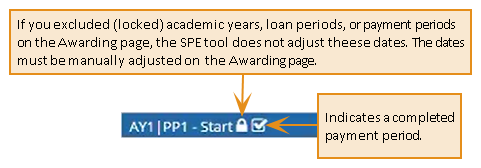
If there are no changes to dates, the calendars for current and projected dates are the same.
-
To review or change any award-related information for the student, select the name of the student in the Results grid. Anthology Student displays the Awarding page for the student.
-
In the Results grid:
- Select the check boxes for the students with dates that you want changed.
- Clear the check boxes for any of the date changes you do not want to be made for a student.
-
When you are ready to change the dates, select Queue Evaluation.
-
For Title IV fund sources in Accepted disbursement status for clock hour programs and credit hour programs with Academic Calendar (AC) 5 and 6 (non-term-based), the message "While saving the projected dates, the system can create an adjustment to the accepted disbursements, which need to be reported to COD by submitting the new Payment Period dates. Would you like the SPE tool to create an adjustment?" appears after you select Queue Evaluation if the registry keys “Create Adjustments using SPE tool” and “Enable Payment Period Update” are enabled in Settings > System > General (refer to General System Settings), AND the Academic Year duration or Payment Period dates have been changed.
When a disbursement or adjustment is in "Batched to Send" status, subsequent adjustments are not created. This requires staff members to create an adjustment manually.
When the new registry key "CreateTIVAdjustmentsBySPETool" is enabled, it will force-enable the Regulatory registry key "EnablePaymentPeriodUpdate". Vice versa is not true.
-
When Create is selected in the message dialog, the system adjusts accepted disbursements for Pell Grants and Direct Loans.
The new adjustment will pull the actual payment period start date and end date.
The system will not adjust disbursements for:
- TEACH grants
- Non-Title IV fund sources
- Adjustments in Pending status
- Programs with AC1-4 (term-based) and non-AC9W
-
When Cancel is selected, the system will not adjust accepted disbursements for Title IV funds.
For Accepted disbursements of Direct Loans, if there is a change in Payment Period dates, a new adjustment sequence is introduced when the registry key "CreateTIVAdjustmentsBySPETool" is enabled. For the new Direct Loan adjustment sequence, Type D is displayed in the UI. Other than that, there is no impact on the COD export or other COD functionality.
Best Practice: Once the students are packaged, it is best to change the housing in the next award year.The above functionality is strictly recommended for Regulatory clients only. It does not apply to clients using Automated COD export.
-
- In the Queue Batch dialog, review or change the name of the batch and select Queue.
Anthology Student processes the batch and changes the dates for the selected students. When the batch completes, Anthology Student displays the results on the History tab so that you can review:
- The results to make sure all the changes you want to be made succeeded
- Any SPE notifications
