Campus-Based COD Export
Use the Campus-Based COD Export process to report student-level Federal Work-Study (FWS) earnings to the Common Origination and Disbursement (COD) system in the Campus-Based XML schema version 1.0a.
Under the FAFSA Simplification Act, the Department of Education uses school-reported data for the FWS Program to calculate the Student Aid Index (SAI) for aid recipients in the Free Application for Federal Student Aid (FAFSA®) processing cycle beginning with award year 2024–25.
The Campus-Based COD Export process involves the following steps:
-
Specify the selection criteria for the records to be extracted from the database
-
Select the records to be included in the export file and export the selected records to the COD system
-
Review the history of batches that have been exported to COD
The data is transmitted to the COD using the response message class CRCBMYIN, which is non-program-specific and non-academic year-specific. The web response message class is CRWBxxIN.
For more details about the FWS reporting process at the student level, refer to Campus-Based Programs.
Financial Aid Processes File Management
Use Processes > System Administration > Financial Aid Processes File Management to upload and download files in Azure File Storage. This functionality allows you to place files where financial aid processes, such as Application Data Import/Export, Clearinghouse, and NSLDS Reports, expect them. Refer to Financial Aid Processes File Management.
We've enhanced the Campus-Based COD export process to include a regeneration feature for identifier changes. This feature allows you to regenerate both standard export records and identifier change records for calendar year 2023. Both standard export records and identifier change records can be regenerated in a single batch. This update ensures that previously exported files can be easily regenerated with complete and consistent information - now for identifier changes as well. The regenerate functionality remains consistent with existing system capabilities. There are no changes to the location, format, or data retention process.
Prerequisites
Important: It is essential for institutions to accurately configure their Federal Work-Study (FWS) Reporting Entity ID and FWS Attending Entity IDs, with COD's assistance if needed. This step influences the entire FWS reporting process.
-
Go to Settings > System > Campuses > select your campus > Financial Aid.
-
On the COD & Packaging tab, in the COD Entity IDs section, specify the values:
Authorizations:
-
Common - Processes - View
-
Financial Aid - Processes - Campus Based Export for COD - FWS
Configure campus-level security for Campus-Based COD Export so users see only records for their assigned campus on the History tab:
-
In Settings > System > Campuses > Campus Groups, create or select a Campus Group containing only the campus that the user can access.
-
In Settings > System > Staff, select the staff member and assign that Campus Group on the General tile.
You should also be familiar with:
Access
Processes > Financial Aid > Campus-Based COD Export
Export Campus-Based COD Files
Process Tab
The Selection Criteria section of the Process tab enables you to specify the data set for the Campus-Based COD Export file.
The Campus-Based COD Export process checks whether records selected for export are already gathered in a Student Review Batch.
-
If a batch is currently processing (not in Complete or Succeeded state) and you try to queue another batch with the same selection criteria, you will receive a notification indicating that you cannot queue the batch until the previous batch has finished processing.
-
If a batch has been successfully processed and you try to gather another batch with the same selection criteria, the process checks if the record is already in another open batch that has been gathered but not exported yet. The process then will not regather the same record.
-
Select a FWS Reporting Entity ID
 .
.The drop-down list contains FWS Reporting Entity IDs for the campuses that you have access to. The default selected FWS Reporting Entity ID is the FWS Report Entity ID associated with the default campus for the logged-in user.
-
Select a Calendar Year or accept the session default.
For the first year of implementation, the default is 2022. As new calendar years are added, the most recent or newly added year will be set as the default.
-
Select a FWS Attending Entity ID
. -
Under Fund Options, the Federal Work-Study check box is selected by default and cannot be edited.
For the first year of implementation (2022), the FSEOG (Federal Supplemental Educational Opportunity Grant) option is not available.
-
Under Other Options, the Identifier Changes option is enabled and selected by default for the 2023 calendar year. The system will pull records with Identifier Changes (specifically Last Name) based on the selected Reported Entity ID, Attending ID, and Calendar Year (2023) and export the Identifier Changes created by the background job that are in "Not Sent" status on the Campus-Based Programs form.
-
If the Identifier Changes are Accepted, the system exports the accepted Identifier Changes to COD on subsequent exports of FWS records to COD
-
If the identifier Changes are Rejected, the system exports the "old" Identifier Changes to COD on subsequent exports of FWS records to COD.
Selecting calendar year 2022 disables the Identifier Changes checkbox.
Regulatory US 24.8 adds new functionality to the Campus-Based Export form. In the Student Review section, both the old and new identifier values are displayed, enabling you to review and verify their accuracy before export. This tab is only visible for records that have identified changes, and the same validation rules apply to these records.
-
-
Select Queue Student Review.
-
The Submit Batch window displays the default Batch Name. You can edit the Batch Name.
-
Select Submit in the Submit Batch window. This starts the background job to process the data and create a batch based on the selection criteria.
When you export or regenerate a file from the Process tab, the notification “[EDEPATH\Filename] file created” indicates that the process finished successfully and the file is created.
-
When the job is completed, a notification appears in the command bar. The number of failed jobs will be indicated in red (
 ).
).-
The job status “Succeeded” indicates that the process is finished with no exceptions.
-
The job status “Completed” indicates that the process is finished with exceptions.
-
Continue with the Student Review Batches tab.
Student Review Batches Tab
The Student Review Batches tab enables you to review the student records included in a temporary batch. Before creating the final batch, you can remove student records that do not need to be exported to COD.
Batches
-
Review the grid listing the temporary Campus-Based COD Export batches. These batches will remain available for 7 days.
When the number of records exceeds 100, the "items per page" drop-down will include the total number of records gathered. Select this option to view all records in a single view.
-
Select the refresh icon (
 ) to retrieve the current status of the background jobs.
 -
If the job status is Completed or Failed, select Retry in the grid toolbar to resubmit the job.
-
To remove a batch, select a batch and select Cancel in the grid toolbar.
-
For a job with a status of Succeeded, select the link in the Batch No column to review the records contained in the batch.
The Job Results section is displayed.
Job Results
-
On the Results tab, review the following details displayed above the grid:
-
Review the record values.
-
To correct validation errors, select the Not Validated link in the grid and then select the Student Profile link in the validation message.
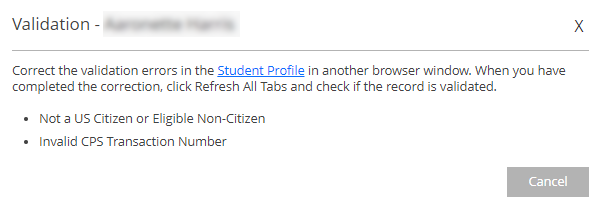
The Student Profile for the selected record is displayed in another browser window or browser tab. Correct the error in the Student Profile, save the changes, and return to the Campus-Based COD Export page.
-
Select validated records for export to the COD system.
-
To select specific records, select the check boxes in the first column.
-
To select all records on the page, select the check box in the header row.
-
To select all records across all pages, select Select All Across Pages.
-
-
To export the selected records to COD, select the Queue Export button.
When the job is completed, a notification appears in the command bar. The number of failed jobs will be indicated in red ().
After export, the grids in the Results section will be auto-refreshed to remove records that were already exported.
History Tab
The History tab contains detailed information about the records included in a batch. You can review the details and decide whether to regenerate or cancel a batch.
When Enable Campus Level Security On Batches is turned on in Settings > System > General, the records on the History tab will be filtered based on the logged-in user and the campus groups associated with the user. Record filtering is based on the SyCampusId. Records with a NULL value in the CampusID field will be visible to all users. CampusID = NULL is assigned to records that are not in Succeeded status (e.g., Completed, Enqueued).
A clean-up script ensures that batches are also filtered if they were created before the implementation of the campus-level security feature. The script runs at the batch level per process and assigns SyCampusId values to the records in the batch.
For Application Data Imports, the clean-up script updates student records with a valid ISIR based on the student’s latest active enrollment campus. When a student has multiple enrollments, the script updates the CampusID to the latest enrollment campus even if the student record was originally imported for a different campus.
For Application Data Exports, the clean-up script retains the Campus Name of the original record.
Unmatched student records, failed batches, and error reports for ISIR imports are visible to all users, including users with limited campus access. For users with limited access, the record numbers in the batches grid (top) and details grid (bottom) may not always match.
If the feature is turned off, the History tab will load the records based on the default campus setting (Session Defaults).
Batches
-
Review the grid listing the batches that have been exported to COD.
When the number of records exceeds 100, the "items per page" drop-down will include the total number of records gathered. Select this option to view all records in a single view.
-
Select the refresh icon (
) to retrieve the current status of the background jobs. -
If the job status is "Completed" and there is a "Details" link in the Results column, select the Details link to view the reasons why the job did not succeed.
If appropriate, select Retry Batch in the grid toolbar to resubmit the job. This option can be useful if an error occurred after the job was submitted (e.g., network issues, SQL cannot be reached).
-
If the job status is Succeeded, you can select Regenerate Batch in the grid toolbar to create a new batch and file out of an existing batch. A message will indicate the number of records that will be included in the batch file.
The regenerated file will have a new Batch ID. A message will indicate the location of the regenerated batch file.
-
For a job with a status of Succeeded, select the link in the Batch ID column to review the records contained in the batch.
The Extract Report section is displayed.
Extract Report
-
The fields above the Extract Report grid display the following information about the batch:
-
The Extract Report grid has the following fields:
When the number of records exceeds 100, the "items per page" drop-down will include the total number of records gathered. Select this option to view all records in a single view.
-
To view the Student Profile for a record, select the link on the student's name. The Student Profile page for the selected record is displayed in a new browser tab if you have permission to view student data.
| This feature applies to U.S. compliance only. |
