Create or Edit All Types of Student Groups
You can use the Groups page to:
-
Create manual student groups.
-
Edit all types of groups. For example, you can specify how often you want Anthology Student to refresh a dynamic group once you have created it using a View.
-
Display, copy, and download the query for dynamic, frozen, and static groups.
When you access a dynamic group created using a View, the page for the group displays the Views icon ( ) along with the View used to create the group in parentheses at the top of the page. You can select the link to go directly to the View.
If the group was created using a report, no icon or report name is displayed on the Groups page because the report is not associated with the View after it is created.
When you import students for a student group (or create a group from a report), the resulting group members are shown with their most recent enrollment status.
Prerequisites
Authorizations:
-
Common - Student Group - Administrative Tasks, Delete, Edit, New, and View
To change the group, you must be authorized to work with the campuses for the group.
To add, remove, or refresh the students in a private group, you must be the owner of the group or selected for Staff with Access to Private Group when the group was created.
To add, remove, or refresh the students in a public or private group, the group cannot be expired and must be active.
You should be familiar with the Types of Student Groups and Methods for Creating Them.
Access
Groups tile
Create or Edit a Group
-
To add a group, select New. To edit a group, select it's name.
-
Review, specify, or change the values. The values that are displayed will depend on the type of group.
Keep Manually Added or Removed Students on Refresh
Staff with Access to Private Group
Transfer Student Monitoring Group
-
If you selected the Private option in "Group Visibility", specify the Staff with Access to Private Group
. -
Save your changes.
Add Students to a Group
Add students to a verification/comment code hold group using the Groups tile in Student Profile, so you can select the applicable award year. Only one verification/comment code group is needed. When an ISIR is imported and a student is flagged for verification or a comment code, Anthology Student automatically identifies the award year and associates the student with the corresponding award year-specific group.
-
In the Student list, select Add.
-
In the Search Student dialog, select the students.
-
Select Select. Anthology Student closes the dialog and refreshes the list with the students and their information.
-
Save your changes.
Work with the Query for Groups
-
Select the dynamic, frozen, or static group.
-
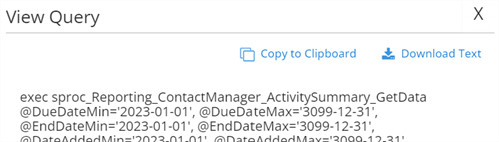
Select View Query.
-
To:
-
Copy the entire query to the clipboard, select Copy to Clipboard
-
Download the query as a text (.txt) file, select Download Text
Example
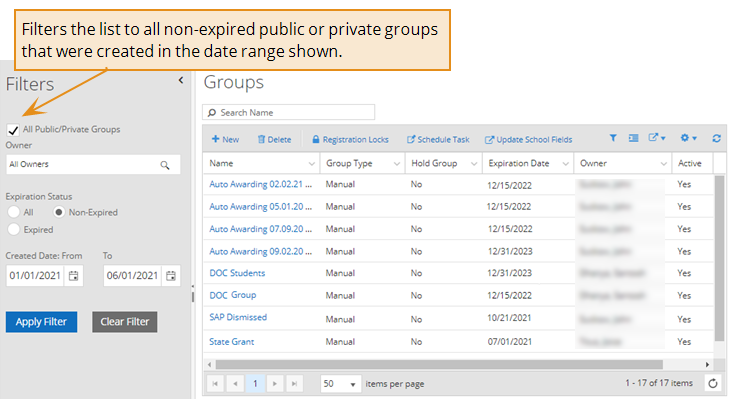
The example shows the Groups page using the filters available on the left.